Configuring iPhone 4s for Focus Mobile
Dealerships should create a default Apple ID to configure all devices with. We do not recommend using an employee's personal Apple ID when configuring devices.
Mobile devices must utilize an Updated iOS
- Turn on the device
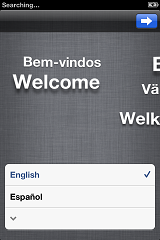
- Select English as the Language
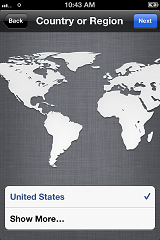
- Select the United States as the Country or Region
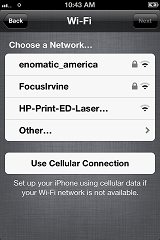
- Connect to a Wireless Network
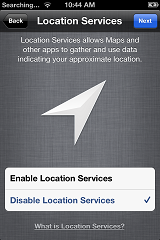
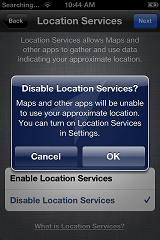
- Disable Location Services
- Verify (Select OK) on disabling Location Services
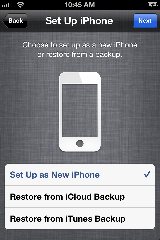
- Set Up as New iPhone Touch
- Sign in with an Apple ID (the default one for your dealership)
- If you do not already have an Apple ID created for the dealerships select "Create Apple ID" and follow the instructions. See Creating an Apple ID.
- We recommend the Apple ID be created by the Owner of the dealership and not an Employee as the person creating the ID will own the Apple ID and will control the access.
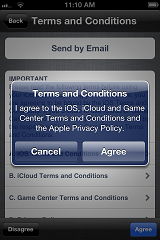
- Agree to terms and Verify that you agree to the terms
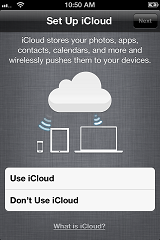
- Don't use iCloud
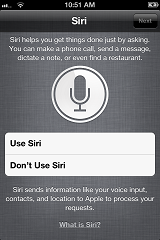
- Don't Use Siri (option only available on iPhone 4s, 5, and iPod Touch 5)
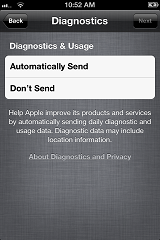
- Diagnostics - Don't Send
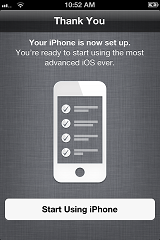
- Start Using your iPhone
- Hide the Icons
- Create 12 separate folders and drag all icons into one of the folders.
- 'Newsstand will not be able to go into a folder.
- Only 12 Applications will fit per folder requiring 2 folders.
- Setup Guided Access
- Select Settings > General > Accessibility > Guided Access
- Turn On Guided Access
- Set Passcode to fulfill PCI Compliance regulations.
- Turn on Sleep Screen
Note - You will enable 'Guided Access' once you download the Focus Application. See Guided Access
- You are now ready to download Focus Mobile. See Downloading Focus Mobile Application.
None
Setting up Wireless Network
Creating an Apple ID
Guided Access
Downloading Focus Mobile Application.