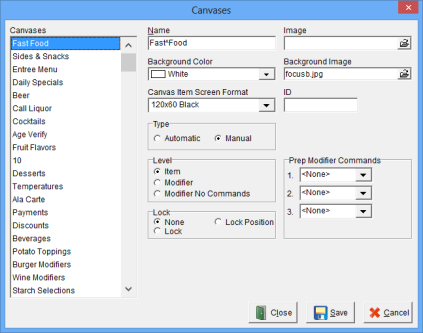
The Canvas Window is used to establish and maintain 250 Canvases.
Accessing the Canvases Window
While in Focus Setup, select Menu > Canvases.
Figure 9.5 Canvases Window
Figure 9.6 Canvases Window Fields
| Field |
Description |
||||||||||||||||||
| Name | A unique name for each Canvas, up to 30 alphanumeric characters. The name may be displayed in up to three lines by including the ^ symbol to indicate a line break. | ||||||||||||||||||
| Image | An image that represents the Canvas. | ||||||||||||||||||
| Background Color | The background color of the Canvas. | ||||||||||||||||||
| Background Image | An image to be used as the background for the Canvas. | ||||||||||||||||||
| Canvas Item Screen Format | The Screen Format used to display Menu Items on Automatic Canvases. If a Screen Format is selected for the Menu Item then it overrides this format. | ||||||||||||||||||
| Type |
|
||||||||||||||||||
| Level |
|
||||||||||||||||||
| Lock |
|
||||||||||||||||||
| Prep Modifier Commands 1-3 | The Prep Modifier Command to be used with a Modifier Canvas. To configure Prep Modifiers select Miscellaneous> General> General> Prep Modifiers. See Video Prep Mods. |
Figure 9.6.1 Canvases Window Commands
| Field |
Description |
| Close | Closes the Canvases Window. |
| Save | Saves current changes. |
| Cancel | Cancels changes made prior to saving |
Procedure to Establish Canvases
Related Videos
Related Topics
Job Right ‘Office – Menu’