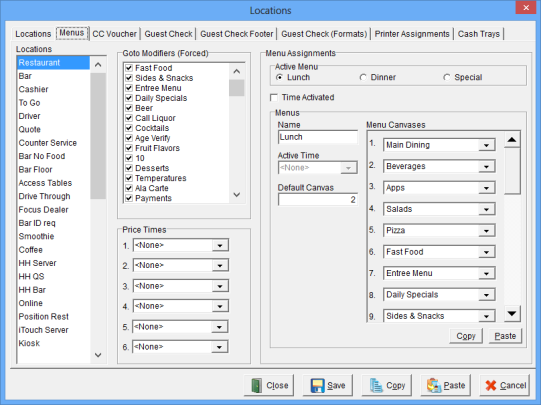
The Menus Window is used to establish up to three Menus that can be time activated. Canvases should be established before a Menu can be created. See Menu > Canvas Designer.
Accessing the Menus Window
While in Focus Setup, select Locations > Locations > Menus.
Figure 7.7 Menus Window
Figure 7.8 Menus Window Fields
| Field |
Description |
||||||||||||||||||
| Goto Modifiers (Forced) | The Modifier Canvas will be displayed automatically if the Menu Item has a Max value greater than 0. For example, if a Server orders a Vodka, the Liquor Modifier Canvas can automatically be displayed to expedite entry of the necessary modifiers. Note: Bartenders would not need the Liquor Modification Canvas to display automatically because they already know how to modify the drink. For a server you would want the Liquor Modifier Canvas checked, but for the bartender location you would not. | ||||||||||||||||||
| Price Times | Price Times determine the price Menu Items are charged. If the Menu Item has a zero price for all the programmed Price Times, then Price 1 is used. Price Times established for Menu Items override the Price Times configured for a Menu. | ||||||||||||||||||
| Menu Assignments |
|
Procedure to Establish Menus
Related Topics
See also (Locations > Locations > Locations)
See also (Locations > Locations > CC Voucher)
See also (Locations > Locations > Guest Check)
See also (Locations > Locations > Guest Check (Formats))
See also (Locations > Locations > Printer Assignments
See also (Locations > Locations > Screen Layout)
See also (Locations > Locations > Cash Trays)
Job Right ‘Office - Locations’