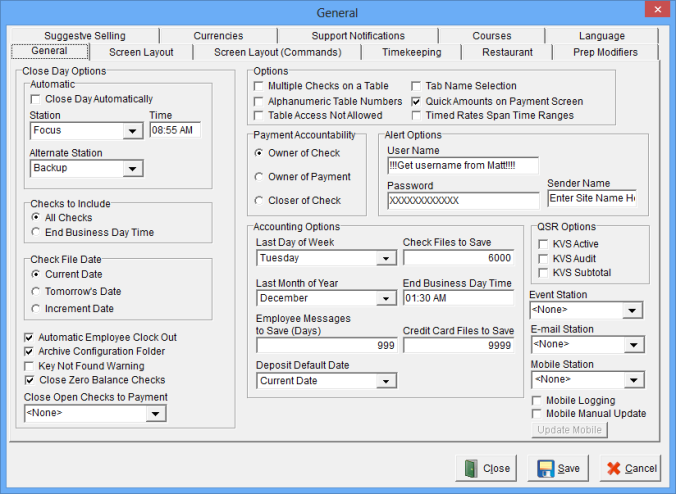
| Field |
Description
|
| Close Day Options |
| Close Day Automatically |
The Close Day process will be automated.
| Station |
The primary Close Day Station. This option is only valid if the “Close Day Automatically” option is on. |
| Alternate Station |
The Alternate Station attempts to close day if the primary Close Day Station has not closed day. This option is only valid if the “Close Day Automatically” option is on. |
| Time |
The Close Day process will start at this time. This option is only valid if the “Close Day Automatically” option is on. |
|
|
| Checks to Include |
| All Checks |
All checks are to be included in the Close Day reports. |
| End Business Day Time |
Only checks opened before the “End Business Day Time” are included on that day’s business. Note: All open checks and their associated items will be moved to the next day’s business when Close Day occurs. Open Checks are renumbered from one onwards. |
|
| Check File Date |
| Current Date |
The date for the next business day is set to the current date when the day is closed. This option should be used when Close Day occurs after midnight. |
| Tomorrow’s Date |
The date for the next business day is set to the following day’s date when the day is closed. This option is most appropriate when Close Day occurs before midnight. |
| Increment Date |
The date for the next business day will is determined by incrementing the current business date. This option is most appropriate in environments where the day is closed manually around midnight. |
|
| Automatic Employee Clock Out |
All employees will be clocked out at the Close Day. |
| Archive Configuration Folder |
Configuration files will be stored in the check file folder for that day. |
| Key Not Found Warning |
If selected the user will see a warning if there is an issue with the hardware key. |
| Close Zero Balance Checks |
If selected, checks that remain open with a zero balance will be closed during the 'End of Day' process. |
| Options |
| Multiple Checks on a Table |
Multiple open checks are allowed on the same table. |
| Alphanumeric Table Numbers |
Table numbers may be accessed by an alphanumeric identifier. An alphanumeric keyboard is provided on the Access Window. |
| Table Access Not Allowed |
If selected, the user will not be able to access checks using the 'Table Access' on the guest check in order entry.
|
| Tab Name Selection |
The user will be able to choose form a list of saved names on the Tab Name Windows. The 'Customer – Approve' Job Right is used to enter new names. |
| Quick Amounts on Payment Screen |
When selected, quick amounts are added to the cash payment screen. These include the different amounts to split a check from 2 to 10 different ways. |
| Time Rates Span Time Ranges |
The price of “Timed Rate” Menu Items is determined by the length of time in each Time Range.. For example, if pool table rental is $10 an hour normally and $6 an hour for happy hour and you play during both time ranges it calculates the rate based off current time range prices. 15 minutes at $10, then 45 minutes at $6.00 during happy hour. |
|
| Payment Accountability |
| Owner of Check |
The employee that owns the check will be responsible for all payments on the check. This option is most often used in server-banking environments. If a check is closed or re-opened to make an adjustment the owner of the check still retains accountability for the payments on the check. |
| Closer of Check |
The employee that closes the check will be responsible for payments on the check. This option is primarily used in cashier environments where an employee other than the opener of the check is expected to take payments. |
| Owner of Payment |
The employee that recorded the payment will be responsible for the payment. This option is used in cashier environments where strict cash accountability is maintained. |
|
| Alert Options |
| User Name |
User name provided by Focus. |
| Password |
Password provided to dealer from Focus |
| Sender Name |
Name to display as the sender of the text message. Usually the name of the restaurant. |
|
| Accounting Options |
| Last Day of Week |
The day that determines the default day range for the Weekly Item Count Report and the week total on the Cumulative Sales Report. This selection is critical when Scheduling is used. |
| Last Month of Year |
The month that determines the default date range for the Cumulative Sales and Cumulative Item Count Reports. |
| Employee Messages to Save (Days) |
The number of days to save Employee Message Files. |
| Check Files to Save |
The number of Check Files (days) to save. If this number is set to zero then no Check Files are deleted. |
| End Business Day Time |
The time the business day will end. The listed time indicates the sales cut off time for that day. Only checks that were opened before this time are included on that day’s business. After-midnight sales may be included in the business for the previous day. |
| Credit Card Files to Save |
The number of Credit Card summary files to save. Recommended is 3 days. |
| Deposit Default Date |
See Video: Default Deposit Date
| Previous Date |
If selected, the previous date will be the default deposit date. |
| Current Date |
If selected, the current date will be the default deposit date. |
|
|
| QSR Options |
| KVS Active |
Enables QSR. |
| KVS Audit |
Used for troubleshooting Kitchen Video. Cannot be active in a live site. |
| KVS Subtotal |
Send the items to the Kitchen Video at Subtotal, Fire, Clear. |
|
| Event Station |
This Station will process active Events. If the selection is set to <None> then Events will not activate.
|
| E-mail Station |
The Station that will serve as the E-mail Station. If the selection is set to <None> then e-mails will not be sent. |
| Mobile Station |
The Station that will serve as the Mobile station if using handhelds or other mobile devices. |
| Mobile Logging |
Creates a separate mobile message file for each day in the Status folder. |
| Mobile Manual Update |
If selected, Focus Mobile will not update automatically. If the Update Mobile button is pressed then the Focus Mobile will update. |