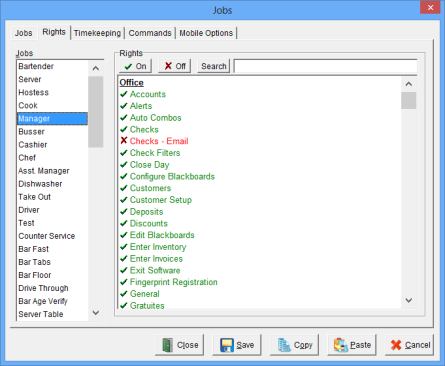
The Rights Window is used to establish Job Rights (access levels) for different Jobs. Job Rights also determines the functions that are available in Focus Order Entry.
Turning on all Job Rights for a particular Job will more than likely create an undesirable result.
While in Focus Setup, select Employees > Jobs > Rights.
 plus green text indicates a Job Right is turned on.
 plus red text indicates a Job Right is turned off.
Figure 2.19 Job Rights - Office
| Job Right |
Description |
| Accounts | Allows the user to add, edit, and delete customer Accounts. |
| Account Balance Adjust | |
| Alerts | Allows the user to configure Alerts. |
| Auto Combos | Allows the user to configure Auto Combos. |
| Checks | Allows the user to view Checks in Focus Setup. |
| Checks - Email | Allows the user to Email the guest check to the customer. See Video: Email Guest Checks. Note: If turned on, user will be able to email guest checks from the 'Check Viewer' and 'Change Due' screen. (V 7.4 Build 13.6.14) |
| Check Filters | Allows the user to configure Check Filters. |
| Close Day | Allows the user to close day. |
| Configure Blackboards | Allows the user to configure Blackboards in Focus Setup as well as from the Manager Wrench in Focus Order Entry. |
| Customers | Allows the user to add, edit and delete Customers. |
| Customer Setup | Allows the user to edit customer Cities, Coupons, Plans, Phone Prefixes, Streets and Zones. |
| Deposits | Allows the user to enter Deposits. |
| Discounts | Allows the user to configure Discounts. |
| Edit Blackboards | Allows the user to edit Blackboards from the Manager Functions Screen (Manager Wrench). |
| Enter Inventory | Allows the user to enter Inventory. |
| Enter Invoices | Allows the user to enter Invoices. |
| Exit Software | Allows the user to terminate the Software. |
| Fingerprint Registration | Allows the user to register a fingerprint for an employee. |
| General | Allows the user to configure options in the General Window. |
| General - Credit/Gift/Loyalty/Customer |
Allows the user to configure the Credit/Gift/Loyalty/Customer Window. (V7.4 Build 13.7.1) |
| Gratuities | Allows the user to configure Gratuities. |
| Inventory Setup | Allows the user to edit Inventory Groups, Ingredients, Recipes, Subgroups, Units, and Vendors. |
| Jobs | Allows the user to configure Jobs. |
| Labor Groups | Allows the user to configure Labor Groups. |
| Locations | Allows the user to configure Locations. |
| Loyalty | Allows the user to add, edit, and delete Loyalty Customers. |
| Menu | Allows the user access to the Canvas Designer and Menu Item configuration. |
| Menu Items - Add Restriction | Prevents users from adding new Menu Items. See Video: Menu Items - Add Restriction |
| Menu Items – Quick Set | Allows the user to access the Quick Set Window. |
| Mobile Station Assignment |
Allows the user to assign Mobile Devices to Stations. (V 7.4 Build 13.1.24) |
| nFocus | Allows the user to view the nFocus Dashboard. |
| Office Software | Allows the user access to Focus Setup. |
| Order Types | Allows the user to configure Order Types. |
| Packages | Allows the user to configure Packages. |
| Paid Ins | Allows the user to configure Paid Ins. |
| Paid Outs | Allows the user to configure Paid Outs. |
| Payments | Allows the user to configure Payments. |
| Password Required | Requires the user to enter an additional password to access Focus Setup and to exit the Focus software. |
| Password Reset | Allows the user to reset the password required to access Focus Setup or to exit the Focus software. |
| Price Levels | Allows the user to configure Price Levels. |
| Printer Drivers | Allows the user to configure Printer Drivers. |
| Printer Formats | Allows the user to configure Printer Formats. |
| Printer Groups | Allows the user to configure Printer Groups. |
| Rear Display Formats | Allows the user to configure Rear Display Formats. |
| Remote Check Formats | Allows the user to configure Remote Check Formats. |
| Remote Printers | Allows the user to configure Remote Printers. |
| Report Groups | Allows the user to configure Report Groups. |
| Report Setup | Allows the user to configure Reports. |
| Restore From Backup | Allows the user to restore the system to the primary server. |
| Revenue Centers | Allows the user to configure Revenue Centers. |
| Screen Formats | Allows the user to configure Screen Formats. |
| Skills | Allows the user to configure Skills. |
| Stations | Allows the user to configure Stations. |
| Table Types | Allows the user to configure Table Types. |
| Tare Weights | Allows the user to configure Tare Weights. |
| Taxes | Allows the user to configure Taxes. |
| Termination Reasons | Allows the user to configure Termination Reasons. |
| Time Ranges | Allows the user to configure Time Ranges. |
| Voids | Allows the user to configure Void Reasons. |
Figure 2.20 Job Rights Employees
| Job Right |
Description |
| Edit Employees | Allows a user to edit and delete employees. |
| Add Employees | Allows the user to add employees. Note: If the user does not have this Job Right the Add button is disabled. |
| View Employees | Allows the user to view employees. |
| View Access Code | Allows the user to view employee Access Codes. |
| View Jobs | Allows the user to view employee Jobs. |
| View Pay Rates | Allows the user to view employee Pay Rates. |
| View Employment Status | Allows the user to view the Employee Status and Termination Reason. |
| View Skills | Allows the user to view employee Skills. |
Figure 2.21 Job Rights Time Manager
| Job Right |
Description |
| Approve Clocks | Allows the user to clock in/out any employee. The user can approve unscheduled clock ins and clock outs. |
| Edit Time Cards | Allows the user to edit Time Cards. |
| Edit Schedules | Allows the user to edit employee Schedules. |
| Restrict Time Card Edit to Current Date | The user may only edit the Time Cards for the current date. |
Figure 2.22 Job Rights Time Clock
| Job Right |
Description |
| Bump Up Early Clock In | (NE) Sets the employee’s clock in time to the scheduled clock in time if they clock in early. |
| Bump Back Late Clock In | (NE) Sets the employee’s clock in time to the scheduled clock in time if they clock in late. |
| Print Clock In Chit | (NE) Prints a clock in chit when the user clocks in. |
| Bump Up Early Clock Out | (NE) Sets the employee’s clock out time to the scheduled clock out time if they clock out early. |
| Bump Back Late Clock Out | (NE) Sets the employee’s clock out time to the scheduled clock out time if they clock out late. |
| Print Clock Out Chit | (NE) Prints a clock out chit when the user clocks out. |
| Clock Out with Open Checks | (NE) The user may clock with open checks. |
| Clock Out with Missing Tips | (NE) The user may clock out if they have not added tips to payments that have the Tip Required option on. |
| Clock In/Out Must be Approved | The user must receive approval to clock in and clock out. |
| Clock In Must be Approved | The user must receive approval to clock in. |
| Clock Out Must be Approved | The user must receive approval to clock out. |
| Must Read Messages Before Clock In/Out | The user must read Messages before they are allowed to clock in or clock out. |
| Print On Break Chit | (NE) Prints a break chit when the user goes on break. |
| Declare Tips | The user will be prompted to declare tips before clocking out. |
| Declare Negative Tips | The user may declare a negative tip amount before clocking out. |
| Take Breaks | (NE) Allows the user to take Breaks. |
| View Time Card | Allows the user to view their Time Card. |
| Print Time Card | Allows the user to print their Time Card. Note: The user must have the ‘View Time Card’ Job Right and the ‘Print Time Card’ Job Right to print a Time Card. |
| View Schedule | Allows the user to view their Schedule. |
| Print Schedule | Allows the user to print their Schedule. The user must have the ‘View Schedule’ Job Right and the ‘Print Schedule’ Job Right to print a Schedule. |
| Enter Availability | Allows the user to define their availability schedule. |
| Overtime Must be Approved | Requires clock in approval for employees that have exceeded the Overtime Options > Warning Hours. |
| Messages | Allows the user to receive Messages at clock in and clock out. |
| Write Messages | Allows the user to send Messages. |
| Check Messages at Login |
Allows the user to receive Messages each time they log into Focus. See Video: Instant Messages. (V 7.4 Build 13.4.29) |
| Reply Messages | Allows the user to reply to Messages. Note: User can reply to Messages even if they do not have the Job Right: Write Messages. (V 7.4 Build 13.6.14) |
| Minimum Wage Tip Comparison | Requires approval if declared tips do not equal or exceed the Minimum Wage (See also: Miscellaneous > General > Timekeeping > Minimum Wage). |
Figure 2.23 Job Rights Order Entry
Figure 2.24 Job Rights Report
| Job Right |
Description |
| Checkout Report - View | (NE) Allows the user to view their Checkout Report (see Employees > Jobs > Checkout Report Options). |
| Checkout Report - Print | (NE) Allows the user to print their Checkout Report while they are still on the clock. |
| Checkout Report - Print if No Open Checks/Tips | Allows the user to print their Checkout Report if there are no open checks or missing tips. |
| Checkout Report – Access Other’s Reports | Allows the user to view the Checkout Report for other users. |
| Drawer Report - View | Allows the user to view the Drawer Report (see Locations > Locations > Cash Trays). |
| Drawer Report - Print | Allows the user to print the Drawer Report. |
| Drawer Report - Access Other’s Reports | Allows the user to view/print Drawer Reports for Cash Trays that they are not assigned. |
| Report Security Code (1-9) | Allows the user to view/print reports that have the same Security Code. |
Related Topics
See also 'Employees > Jobs > Jobs'
See also 'Employees > Jobs > Timekeeping'
See also 'Employees > Jobs > Commands'
Job Right ‘Office - Jobs’