Reports   
Purpose
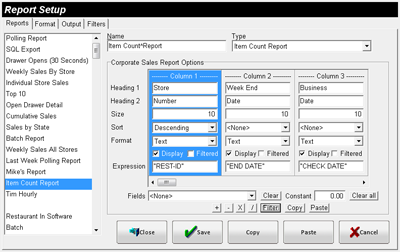
The Item Report Setup Window is used to create custom reports containing item based sales information such as Item Units sold, Report Group Sales, etc. (see Figure 4.5.29 for a complete list).
 
Accessing the Item Report Setup Window
While in Focus Enterprise, select Setup > Reports > (select the Item Report).
 
Figure 4.5.28 Item Report Setup Window
 
Figure 4.5.29 Item Report Setup Window Fields
Field
Description
Name

The Name for the Item Report, up to 25 alphanumeric characters.

Type

The report Type (Item Report).

Corporate Sales Report Options
Column 1-30

Up to 30 Columns can be used for the report.

Heading 1

A name for the column, up to 15 alphanumeric characters. Note: If “%”s is used for the heading field then it is replaced by the starting date of the column (assuming a date filter has been specified for the column).

Heading 2

A name for the column, up to 15 alphanumeric characters. Note: If “%e” is used for the heading field then it is replaced by the ending date of the column (assuming a date filter has been specified for the column).

Size

The Column width. Note: The Column Name and contents should be considered when choosing the Column Size.

Sort
<None>

The Column will not be sorted.

Ascending

The Column will sort Records ranked on the lowest value to highest value (i.e., lowest Net Sales to highest Net Sales).

Descending

The Column will sort Records ranked on the highest value to lowest value (i.e., highest Net Sales to lowest Net Sales).

Format
Currency

The Currency Format is used to display monetary values.

Integer

The Integer Format is used to display numbers without decimals.

% (Average Breaks)

The % (Average Breaks) Column is used when displaying percentage information. Each Column value will be multiplied by 100 to display the percentage. Furthermore, the Total line will display the average of all the Column values.

Currency (Avg. Total)

The Currency (Avg. Total) Format is used to display monetary values. The Total line will display the average of all Column values.

Integer (Avg. Total)

The Integer (Avg. Total) Format is used to display numbers without decimals. The Total line will display the average of all Column values.

Text

The Text Format is used to display non-numerical information such as the date or store information.

% (Total Breaks)

The % (Total Breaks) Column is used when displaying percentage information. Each Column value will be multiplied by 100 to display the percentage. Furthermore, the Total line will display the sum of all the Column values.

Display

The report will be displayed on the Reports Window.

Filtered

The Column will be Filtered (see Filter and Filters).

Expression

The data the Column will contain. The Expression can contain individual Fields or a calculation of Fields and other Columns. Note: Calculations take place from left to right.

Fields
Name

Description

ITEM-NAME

The Menu Item’s Name.

ITEM-ID1

The Menu Item’s ID1.

ITEM-RG

The Menu Item’s Report Group.

ITEM-SK

The Menu Item’s Sort Key.

ITEM SALES PRICE1-6

The Menu Item’s Sales amount for Price 1-6.

ITEM SALES PRICE7

The Menu Item’s Sales amount for the Sub Price.

ITEM SALES PRICE8

The Menu Item’s Sales amount for the Extra Price.

ITEM SALES PRICE9

The Menu Item’s Sales amount for the No Price.

ITEM SALES PRICE10

The Menu Item’s Sales amount for the Mod Price.

ITEM SALES PRICE11

The Menu Item’s Sales amount for the Dbl% Price.

ITEM UNITS PRICE1-6

The number of Menu Item Units sold at Price 1-6.

ITEM UNITS PRICE7

The number of Menu Item Units sold at the Sub Price.

ITEM UNITS PRICE8

The number of Menu Item Units sold at the Extra Price.

ITEM UNITS PRICE9

The number of Menu Item Units sold at the No Price.

ITEM UNITS PRICE10

The number of Menu Item Units sold at the Mod Price.

ITEM UNITS PRICE11

The number of Menu Item Units sold at the Dbl% Price.

ITEM TOTAL SALES

The Menu Item’s Total Sales amount.

ITEM TOTAL UNITS

The Menu Item’s Total Units sold.

ITEM RG SALES

The Report Group Sales amount that the Menu Item belongs.

ITEM RG UNITS

The Report Group Units sold that the Menu Item belongs.

Net Sales

The Net Sales amount.

Report Group Units

The number of units sold for all Report Groups.

Report Group Sales

The sales amount for all Report Groups.

RG$1-100:

The sales amount for the selected Report Group.

RGUnits1-100:

The number of units sold for the selected Report Group.

BEGIN DATE

The beginning date of the report.

END DATE

The ending date of the report.

CHECK DATE

The date of the check.

CURRENT DATE

The current date.

REST-ID

The ID of the restaurant established in Setup > Restaurants > ID.

REST-NAME

The Name of the restaurant established in Setup > Restaurants > Name.

REST-ADDRESS

The Address of the restaurant established in Setup > Restaurants > Address.

REST-CITY

The City of the restaurant established in Setup > Restaurants > City.

REST-STATE

The State of the restaurant established in Setup > Restaurants > State.

REST-ZIP

The Zip Code of the restaurant established in Setup > Restaurants > Zip Code.

REST-GROUP

The name of the Group.

Column1-29

The expression of the selected column is placed in the current column.

ColumnTotal1-29

The total for the specified column is placed in the current column.

Clears the Expression Field.
Constant
A Number used in the Expression.
 
For Example, to view a percentage as a number instead of a decimal, multiply the expression by the constant “100”. This would change the percentage view from “0.025” to “2.5”.
Adds the values in the Expression.
Subtracts the values in the Expression.
Multiplies the values in the Expression.
Divides the values in the Expression.

Clears the content of all Columns.
Displays the Filter Window. The settings in the Filter Window determine the data displayed for the column (see Filter).
Copies the fields in the currently selected Column.
Pastes the previous copied Column to the currently selected Column.
 
Related Topics (none)


Copyright © 2007 Focus POS Systems