PurposeThe Procedure to create a New Download is shown
below.Procedure to
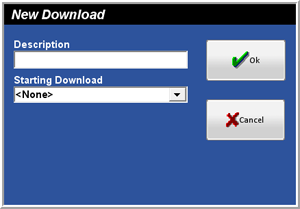
Create a New Download▪ While in Focus Enterprise, select Corporate > Downloads.▪ Click New.Figure 3.2.17
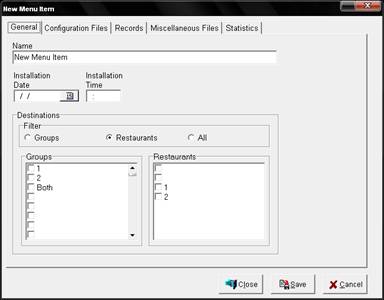
New Download Window▪ Enter the Description. ▪ Click OK.Figure 3.2.18 General Window▪ Select the Installation
Date.▪ Input the
Installation Time.▪ Select the
appropriate Destination filter (Groups, Restaurants or All)▪ Select the
appropriate Groups or Restaurants if using the Groups or Restaurants Filter.▪ If a Configuration File
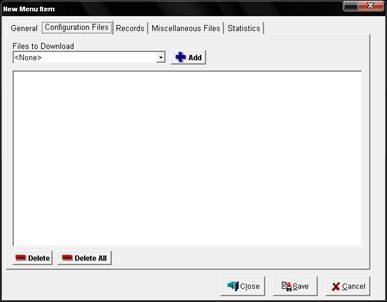
is to be included in the Download, select the Configuration Files Tab.Figure 3.2.19 Configuration Files Window▪ Select the
Individual Configuration File(s) (if appropriate) to be used for the Download
and click on the Add button.▪ If a Record is to be
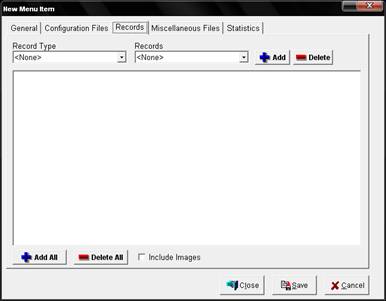
included in the Download, select the Records Tab.Figure 3.2.20
Records Window▪ Select the Record(s) (if appropriate) to be included in the Download
and click on the Add button. If the Record contains an image, select the
Include Images option.▪ If a
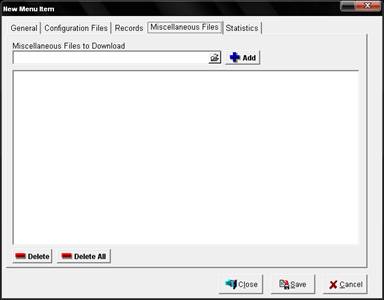
Miscellaneous File is to be included in the Download, select the Miscellaneous
Files Tab.Figure 3.2.21 Miscellaneous Files Window▪ Use the File
Browser to select the Miscellaneous File(s) to be included in the Download and
click the Add button.▪ When done adding
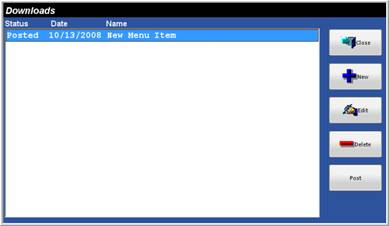
the items for the Download, click Save.Figure 3.2.22 Downloads ▪ To activate the
Download, select the newly created Download and click Post.Related Topics
(none)
 How to Create a New Download